 MMDfr.fr
MikuVideo Help
MikuVideo is a simple tool for beginners in MikuMikuDance. It allows you to inspect videos by zooming and moving frame by frame, convert videos to quickly send them to social networks, and convert videos to a format compatible with MikuMikuDance for background and screen.
Inspect Video
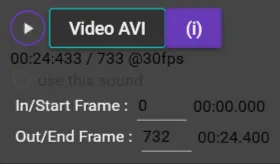
Yes, we will improve the graphic chart in the next version ;o)
Load the video (.avi, .mp4, .webm, .mkv — any format known to FFmpeg) using the AVI Video button. The video plays immediately.
The interface shows the number of frames (at 30 Fps) and duration in Minutes:Seconds.Hundredth of a second.
- Start and Stop : You can indicate the starting frame in frame number at 30 fps, same for the ending frame.
- By default
start = 0,stop = end of video. - For more complex editing, use dedicated video editing software.
- The Sound/Wave button allows you to open a
.wavsound file or another video.
Basic buttons

Slider
- Large slider = cursor in the video — click + drag the purple ball to seek.
Playback speed
| Control | Action |
|---|---|
| Display area | Default speed, 30 Fps |
| Click on the area | Return to 30 Fps |
| Mouse wheel | Speed variation from x0.125 (3.8 Fps) to x2 (60 Fps) (beyond this can cause the graphics card to overheat) |
Reading mode
One click on these buttons:
| Button | Action |
|---|---|
<- | Reverse — reading towards the beginning |
|| | Pause |
-> | Forward — normal direction |
Display of current position
- Position in
Minutes:Seconds.Hundredthof a second (one frame = 0.033 seconds, 1/30 second). - Position in frames, starting at 0, at a rate of 30 Fps (MMD standard).
- Mouse wheel → switch to frame-by-frame mode and increment/decrement the frame position for precise positioning.
Sound adjustment
- Slider for sound volume adjustment.
- Speaker icon to mute and unmute the sound (yes, it’s stuck — next version…).
Zoom
- Square button : Reset zoom to 100%.
[-]and[+]: Zoom out / Zoom in.- Mouse wheel on this area : Change zoom level.
Keyboard and mouse shortcuts in the visualization window
Click once in the window to give it focus (this will be improved in the next version).
| Shortcut | Action |
|---|---|
| F | Toggle Full screen / Windowed |
| Mouse wheel | Frame-by-frame mode — increment/decrement frame position |
| Shift + Mouse wheel | Zoom + / - |
| Click + Drag | Pan — move the viewing area |
| Shift + Click + Drag | Zoom + / - (for users without a scroll wheel) |
| Ctrl + Click + Drag | Frame-by-frame mode — increment/decrement frame position |
| ← → | Frame-by-frame movement |
| ↑ ↓ | Move 30 frames (1 second) |
| Shift + Arrow keys | Zoom |
| Space | Toggle Pause / Play |
| Ctrl + T | Take snapshot — saves a PNG image in the Snapshot directory at the same level as the main video |
Convert from MikuMikuDance to MP4
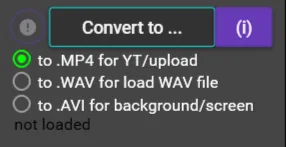
Why this is useful
You can send any video format to YouTube — they have the best converter in the world. But large files mean large upload times and high data consumption, especially on a mobile data plan.
| Quality | 30 seconds |
|---|---|
| 4K AVI / Raw | 4000 MB (4 GB) |
| 4K AVI / UtVideo | 400 MB |
| 4K MP4 | 40 MB |
Convert to MP4 with an offset from frame 0 for sound
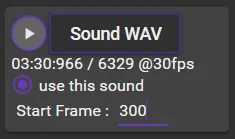
Why this is useful
MikuMikuDance has a bug: if you don’t start in frame 0, it does not include sound in the output video.
To remedy this: with the Sound/Wave button, select the WAV or MP4 file (or even a video with the soundtrack correctly placed starting at frame 0).
Indicate in offset the frame number where the main animation video begins.
When generating the MP4 video, the two elements will be assembled (video from the first, sound from the second) starting at the correct frame number.
To start MP4 conversion, select To MP4 and click the Convert button. When finished, the MP4 video plays in MikuVideo for inspection.
The output name is the same as the AVI video with the extension changed to .mp4.
Convert to MikuMikuDance format (for background or screen)
Why this is useful
To use a video downloaded from the internet (for example via YtDL or a YouTube downloader, installed by MikuInstaller), you must convert MP4, AV1, MKV (and all other modern formats) to an older format compatible with MikuMikuDance.
This older codec is not very efficient — compression artifacts are clearly visible. Always start with a high-definition HD video (1024p or more) before converting to AVI.
| Step | Action |
|---|---|
| 1 | Select the video using the Video AVI button (opens any format) |
| 2 | Define start and end frames with Start / Stop |
| 3 | Select Convert to AVI for Background / Screen and click Convert |
| 4 | Wait — conversion is slow. When finished, the video opens in MikuVideo |
Use the video in MikuMikuDance
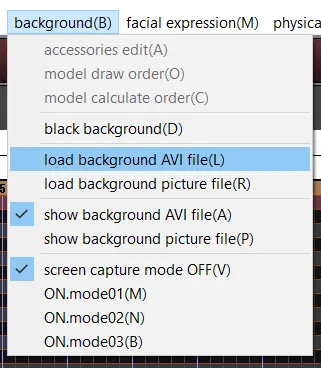
Load it into MikuMikuDance: Background > Load Background Video, select the converted AVI file.
For screen display usage
- Disable “Show Background AVI File (A)”
- Select “Screen capture ON - ON Mode 03 (B)“
For background display usage (Motion Trace)
- Enable “Show Background AVI File (A)”
- Select “Screen capture OFF (V)”
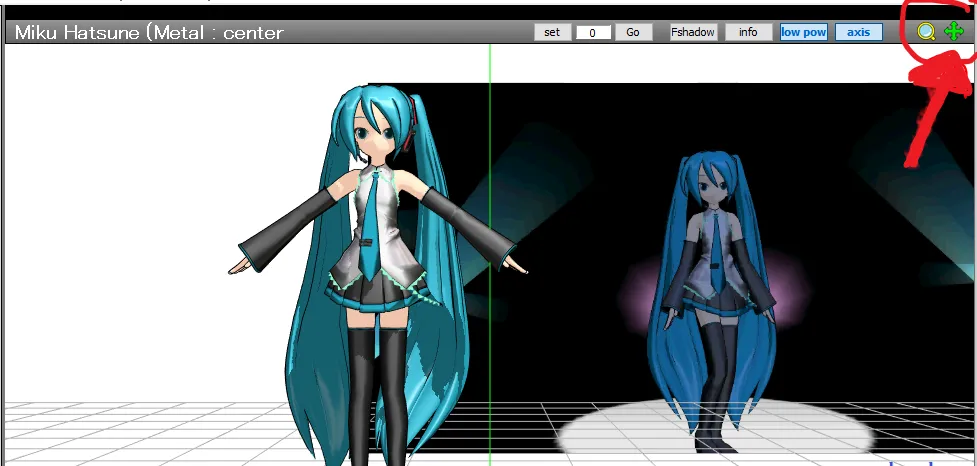
- Shift + Drag on Zoom icon (top right) : Zoom + / - the video
- Shift + Drag on Move icon (top right) : Pan the video
Convert to WAV format (Sound Track)
Same process as video conversion, except that the video is converted into a WAV file at 44,100 Hz — the format and sample rate required by MikuMikuDance. Using a different sample rate will cause audio drift over time.
Convert the sound track to MP3
Oops, not ready — next version ;o)
Useful to listen to the music on your MP3 player (phone ;o) to learn the choreography by heart ;o)
Have fun with MikuMikuDance & MikuVideo !